👥 Teams
Teams let you collaborate with colleagues on shared documents, folders, and data rooms. The Teams section has two tabs: Team Content and Team Management.
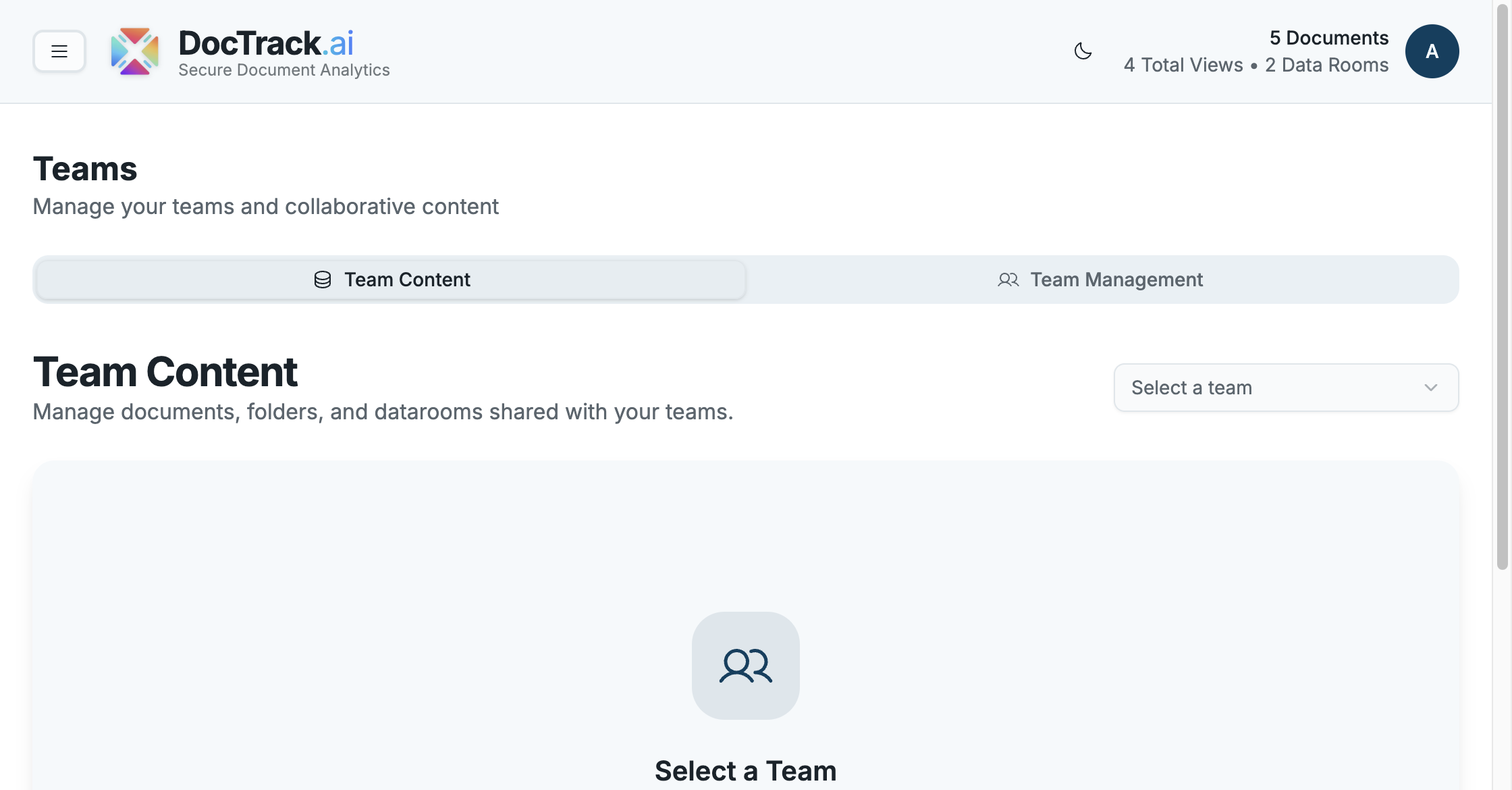
📂 Team Content
The Team Content tab shows the documents, folders, and data rooms shared with a team. Use the team dropdown to switch between the teams you belong to.
If you're not yet a member of any team, you'll see a prompt to choose a team — ask an administrator to add you, or create your own team from the Team Management tab.
🛠️ Team Management
The Team Management tab is where you create and administer teams.
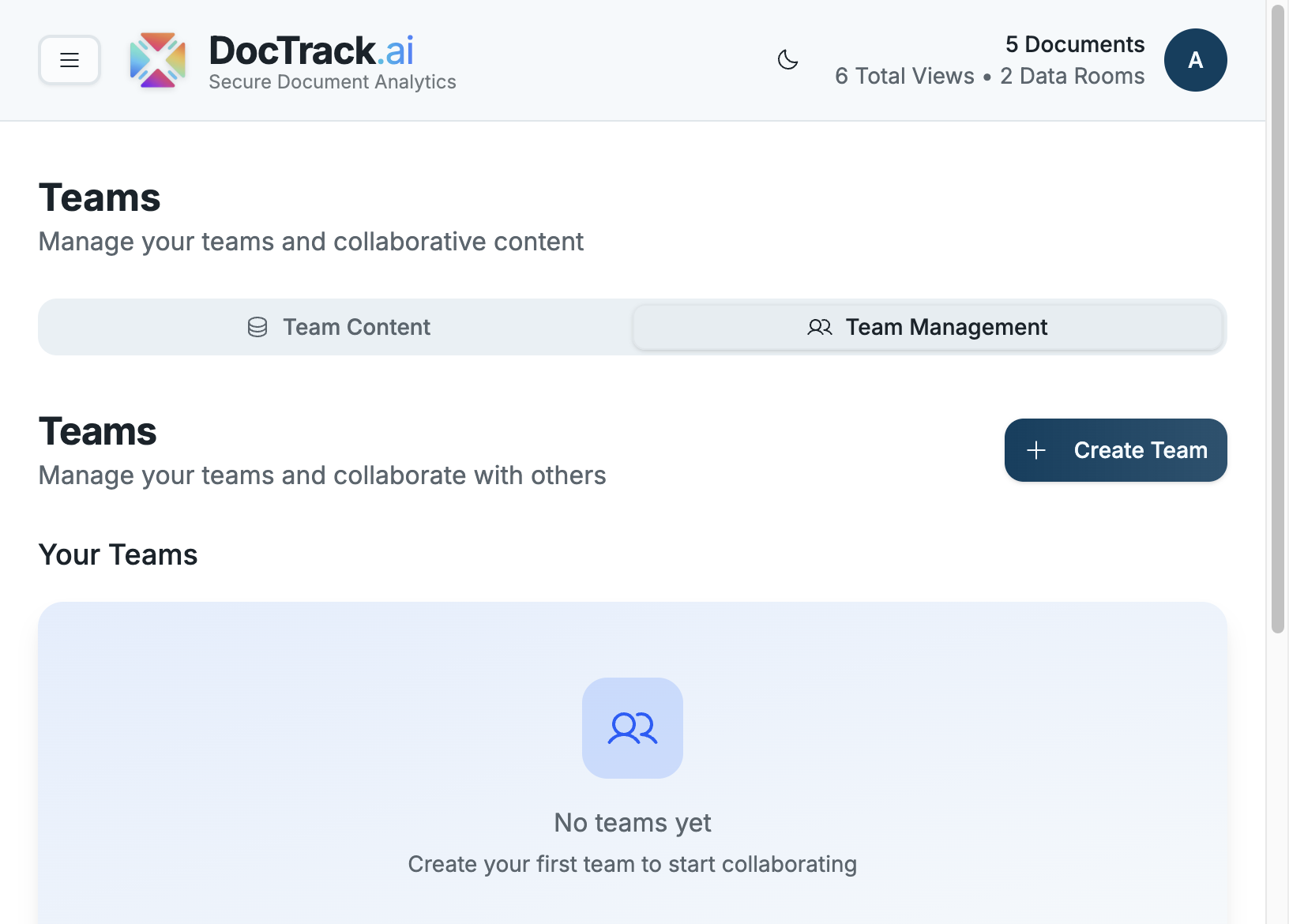
From here you can:
- ➕ Create a team with the Create Team button.
- 👥 View your teams and select one to see its details.
- 🧑🤝🧑 Manage members within a team.
➕ Creating a Team
- Open the Team Management tab.
- Click Create Team.
- Fill in the details and confirm.
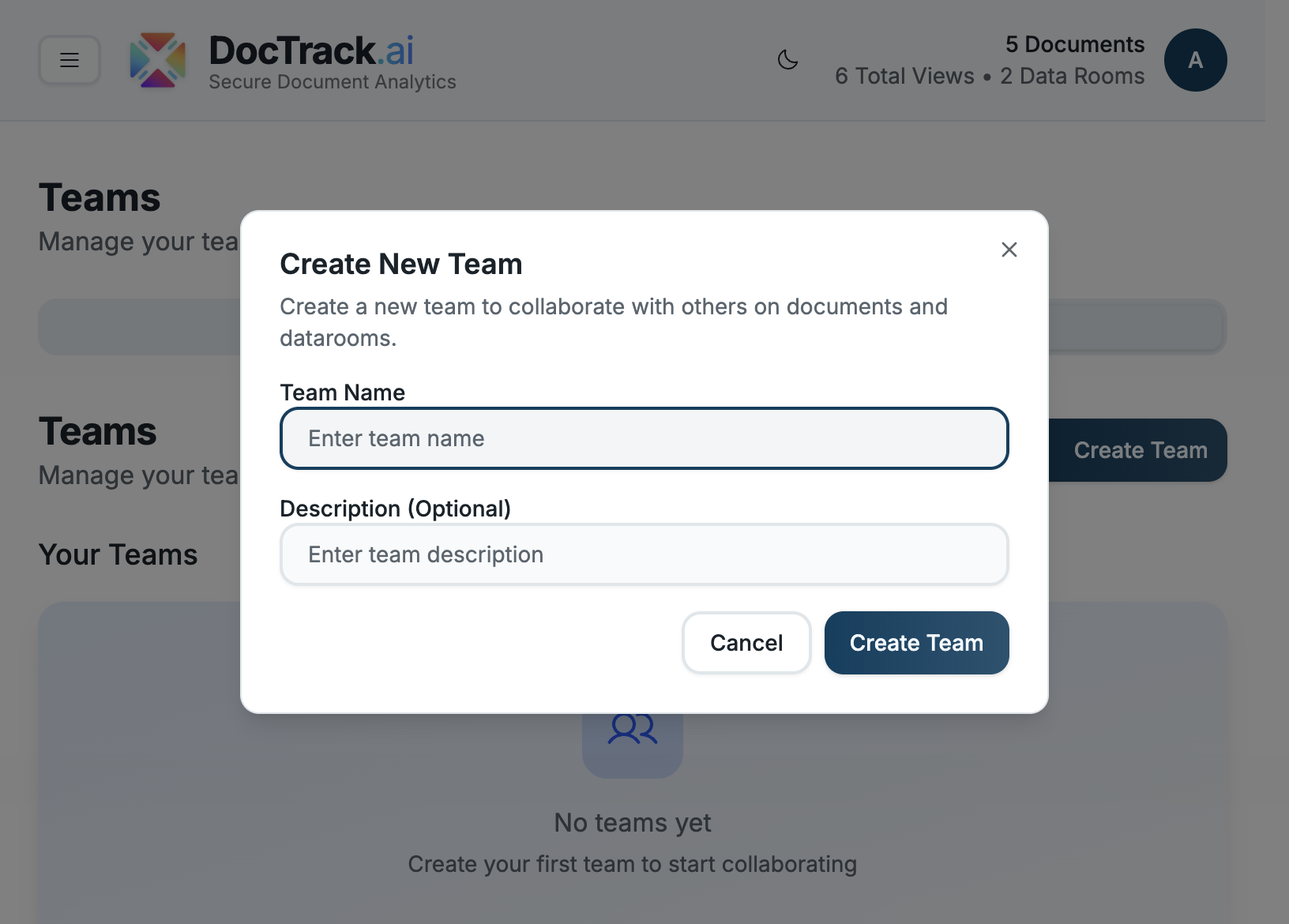
| Field | Description |
|---|---|
| 🏷️ Team Name | The name of your team. |
| 📝 Description (optional) | A short description of the team's purpose. |
Once created, the team appears under Your Teams, and you can start sharing documents, folders, and data rooms with its members.
💡 Teams are great for separating work by department or client while keeping shared content organized and access-controlled.
Next: recover deleted items in Recently Deleted. 🚀