🔗 Shared Links
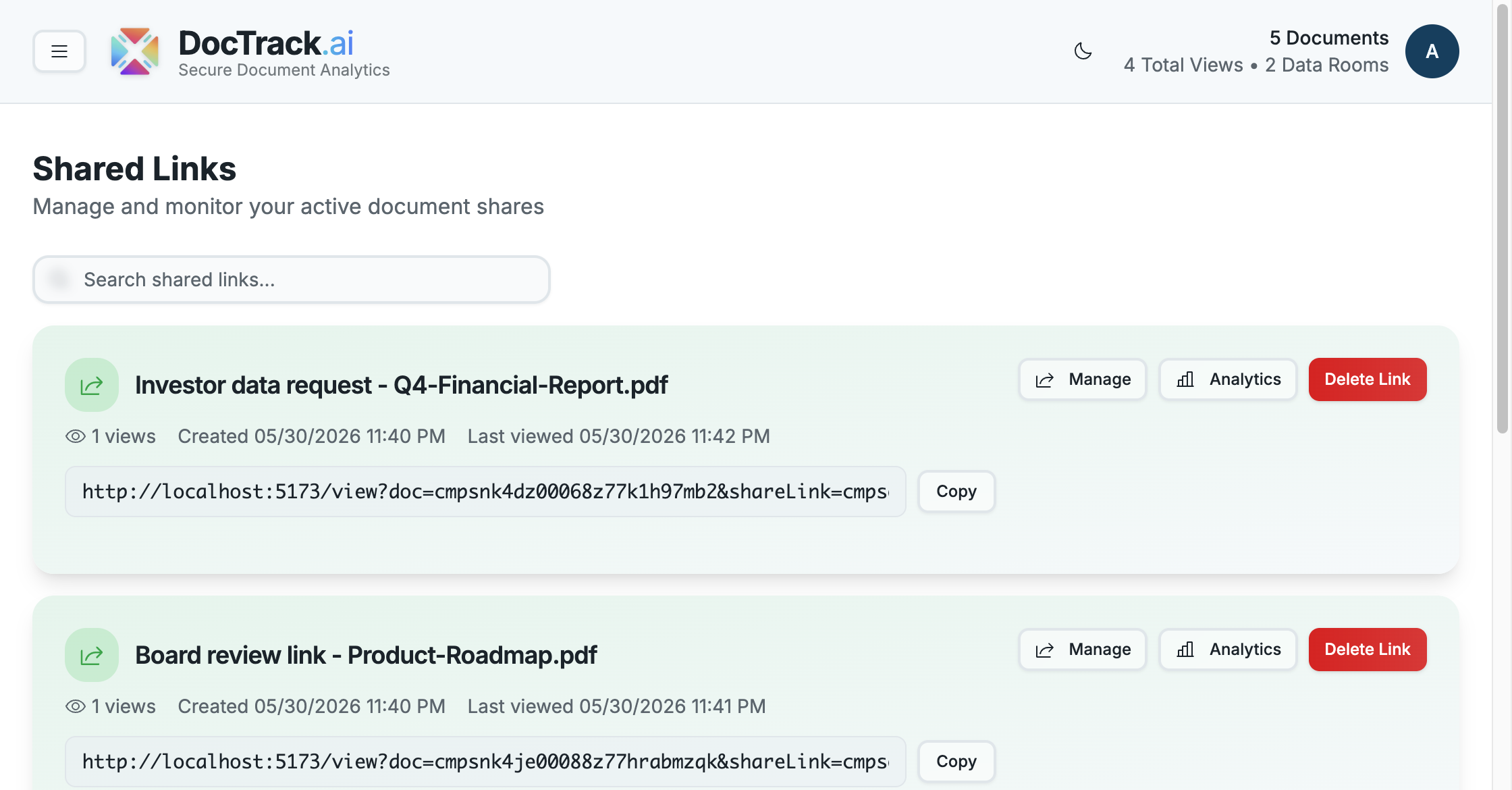
The Shared Links section is a centralized view of every share link you've created across all your documents. From here you can monitor performance, copy links, manage settings, and revoke access — all in one place.
👀 What Each Link Shows
Every link card displays:
- 🏷️ Link name and document — e.g. "Investor outreach link — Product-Overview.png".
- 👁️ View count — how many times the link has been opened.
- 📅 Created date and 🕒 last viewed date.
- 🔗 The shareable URL, with a one-click Copy button.
You can filter the list using the Search shared links box at the top.
🧰 Link Actions
Each link offers three actions:
| Action | What it does |
|---|---|
| ⚙️ Manage | Opens the share dialog to view, edit, or add links for the document. |
| 📊 Analytics | Opens detailed analytics for the link's document. |
| 🗑️ Delete Link | Immediately revokes access through that link. |
⚙️ Managing a Link
Clicking Manage opens the Share Document – Multiple Links dialog, which lists all existing links for that document. For each link you can Copy the URL, show a QR code, or delete it — and you can spin up a brand-new link with Create New Share Link.
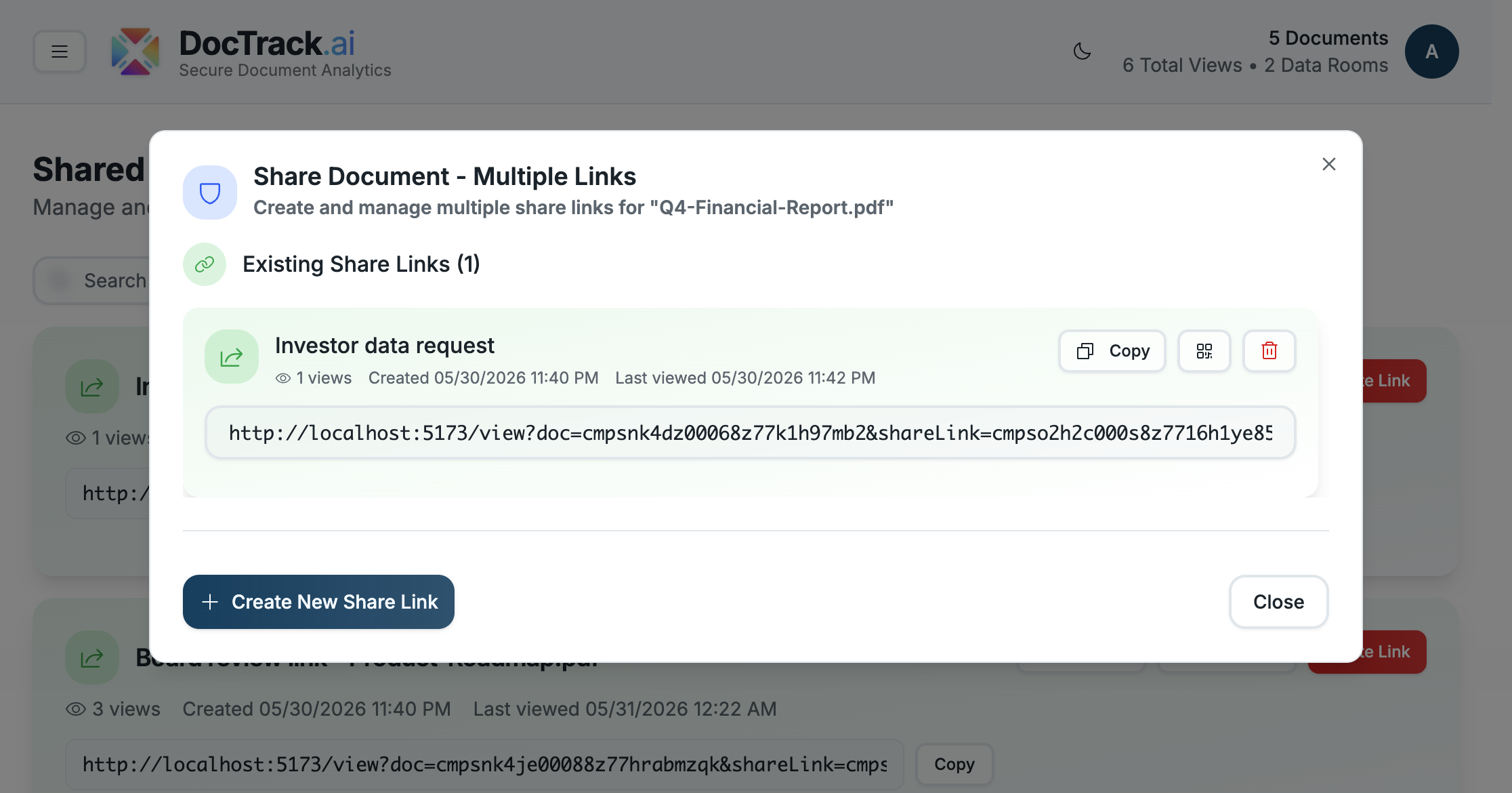
💡 A single document can have multiple links — for example, one per recipient — so you can track engagement and revoke access independently.
🗑️ Deleting a Link
- Find the link in the Shared Links list (or in the Manage dialog).
- Click Delete Link (or the trash icon).
- Access through that URL stops working immediately.
⚠️ Deleting a link does not delete the underlying document. ⚠️ Deleted links cannot be restored — create a new one if you need to re-share.
✅ Best Practices
- 🏷️ Use clear, descriptive link names (e.g. "Q4_Investor_Update_Acme").
- ⏳ Set expiration dates for time-bound or compliance-sensitive sharing.
- 🔐 Add a password and 📧 email gating for confidential content.
- 📥 Disable downloads and 💧 enable watermarking for sensitive documents.
- 📈 Review analytics regularly to spot your most engaged stakeholders.
Next: a full walkthrough of Creating a Share Link. 🚀