🗂️ Managing Documents & Folders
The Documents section is your central library. From here you can organize, search, preview, share, and analyze every file you've uploaded.
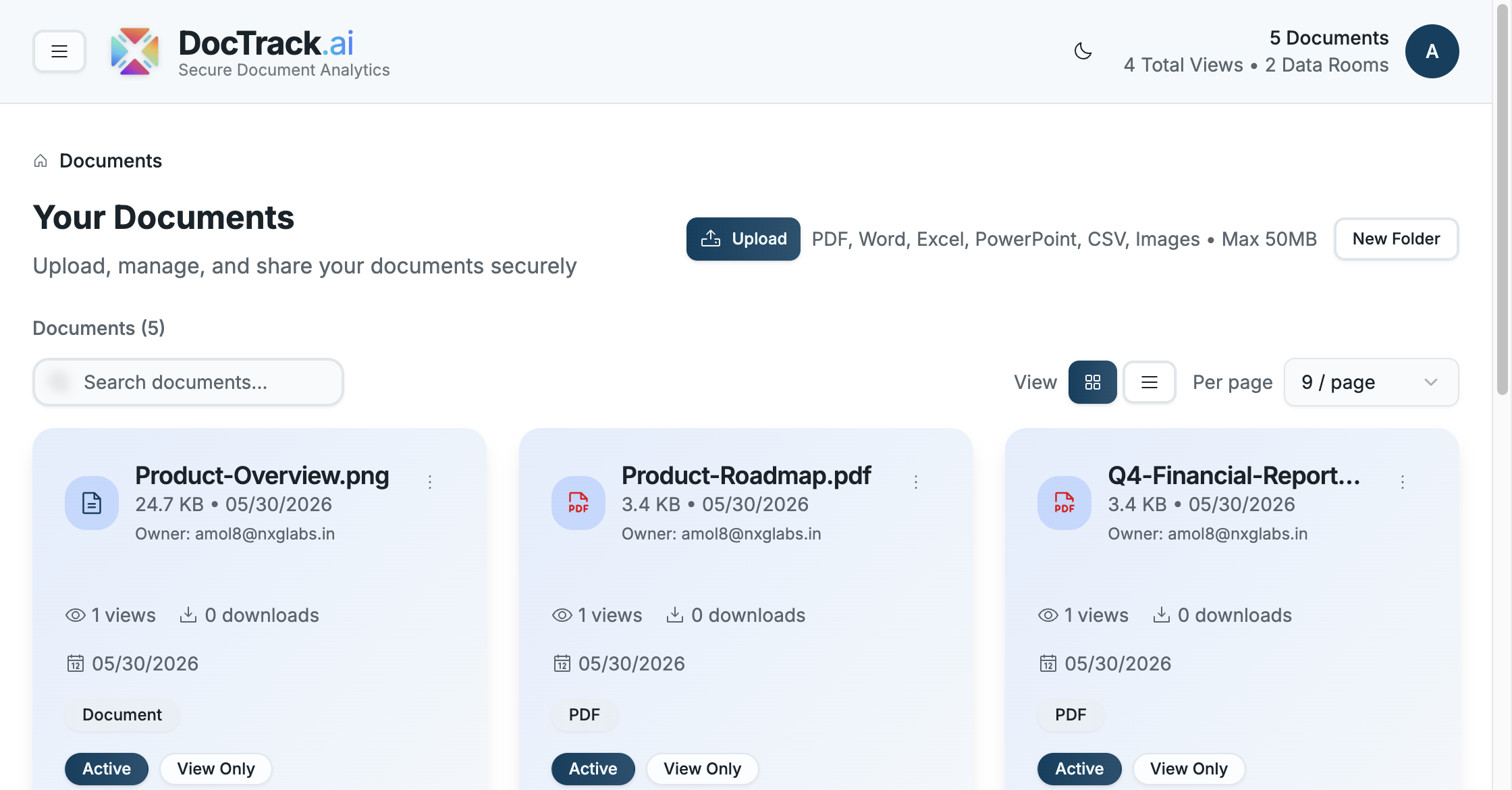
🔍 Finding Documents
- 🔎 Search — use the search box to filter documents by name.
- 🔲 View toggle — switch between grid and list layouts.
- 📄 Pagination — control how many documents appear per page (e.g. 9 / page).
📁 Organizing with Folders
- Click New Folder at the top of the Documents page.
- Give the folder a name.
- Move documents into it to keep related files grouped together.
Folders make it easy to separate content by client, project, or deal — and they're also used as the destination when collecting files through a File Request.
⚡ Per-Document Actions
Each document card exposes quick actions:
| Action | What it does |
|---|---|
| 👁️ Preview | Opens the document in the secure viewer. |
| 🔗 Share | Opens the share dialog to create or manage trackable links. |
| 📊 Analytics | Opens detailed analytics for that document. |
A document card also displays useful metadata at a glance:
- 📦 File size and upload date
- 👤 Owner
- 👁️ View count and 📥 download count
- 🟢 Status (Active) and access mode (e.g. View Only)
🗑️ Deleting Documents
Deleting a document moves it to Recently Deleted, where it can be restored for up to 30 days. See Recently Deleted for details.
⚠️ Deleting a document does not retroactively delete the analytics already collected for it, but its share links will stop working.
Next, explore the viewing experience in The Document Viewer. 🚀